Sunday, October 25, 2015

Connecting Online Database to a Java Application


Today we are going to talk about connecting your java application to a online database.
It is very similar to connecting a offline database which is in your computer.

First of all you have to go to your control panel.

Then click on the Remote MySQL. Then you will be asked to add an access host. You  can enter the IP address of the computer that you are going to access the database. If you are accessing the database using a dynamic IP address, then you are allowed to enter percentage sign (%).
It will allow any IP address to access the database. (This is considered as a security risk)

Well, after you adding the access host, you can start connecting the java application to the database.


Now select the database driver and select connect using from the list.


Enter the correct data to the fields and click next and then finish.

Connecting to the online database is now completed. Retrieving and updating data is same as java offline databases.

Hope you got it correctly.
Please comment any questions.

Past Topics:-


Friday, September 25, 2015

Notice : Voila


How are you today?

Today this post is about to inform you about a new social media and online chatting website. Actually it was developed by me. So you are welcome to try it.

http://voilalk.com

Here is the link, experience the website and let me know what you think.

Thank You!

Wednesday, September 23, 2015

Creating Online Real-Time Chat Application in PHP and JavaScript


Hey guys, how are you today?
Today we are going to create a Simple Real-Time chat application using PHP and JavaScript.

Let's assume that we have created a suitable database. Following are the details of the database that i have created for the demo application.
Database Name - DemoChat
Table Name - ChatTbl
Column 1 - User
Column 2 - Message

Now we are good to go.

First we have to create the user interface for the chat application.
Here is the sample code:-


<html>
<head><title>Chat Application</title></head>
<script src="http://code.jquery.com/jquery-1.9.0.js"></script>
<script>
function submitChat(){
if(form1.uname.value==""||form1.msg.value==""){
alert("Fill all fields!!");
return;
}


var uname = form1.uname.value;
var msg = form1.msg.value;
var xmlhttp = new XMLHttpRequest();

xmlhttp.onreadystatechange = function(){
if(xmlhttp.readyState==4 && xmlhttp.status==200){
document.getElementById('chatLog').innerHTML = xmlhttp.responseText;

}
}
xmlhttp.open('GET','insert.php?uname='+uname+'&msg='+msg,true);
xmlhttp.send();
}

//jquey lines 
$(document).ready(function (e){
$.ajaxSetup({cache:false});
setInterval(function(){$('#chatLog').load('logs.php');},2000);
}
)

</script>

<body>
<form name="form1">
Enter chat name : <input type="text" name="uname"/>
Your Message : <textarea name="msg"></textarea><br/>
<a href="#" onclick="submitChat()">Send</a><br/><br/>


<div id="chatLog">
This is the Chat LOG
</div>
</form>
</body>
</html>

Well let's see the code in detail.
In the first script tag we have added a jQuery file which will be needed in the code.
Then the function submitChat() is created. In this function first it checks whether the user name and the message fields are filled by the user. If not it will create an alert.

If these fields are not empty, the contents of these fields are assigned to JavaScript variables.
Then XML and HTTP object is created as follows.
var xmlhttp = new XMLHttpRequest();
This will allow us to load a PHP code without reloading the page.

Later,
xmlhttp.onreadystatechange = function(){
if(xmlhttp.readyState==4 && xmlhttp.status==200){
document.getElementById('chatLog').innerHTML = xmlhttp.responseText;

}
}
xmlhttp.open('GET','insert.php?uname='+uname+'&msg='+msg,true);
xmlhttp.send();
}

In this code it sends the user name and message content to a PHP page named insert.php.

Then,
$(document).ready(function (e){
$.ajaxSetup({cache:false});
setInterval(function(){$('#chatLog').load('logs.php');},2000);
}
)

In this code it runs the code in logs.php and prints the content inside the div tag where the id is equal to chatLog. And refreshes only the content of that particular div tag in every 2000 mili-seconds.

Code after the <body> tag is plain HTML, so I hope you will understand it.


Now let's look at the insert.php file.
Here is the sample code:-

<?php
$uname = $_REQUEST['uname'];
$msg = $_REQUEST['msg'];

//create DB connection and select DB
#Hope you know how to connect to a database and select the database in PHP
#If not please refer Connecting Database in PHP

mysql_query("INSERT INTO ChatTbl VALUES('$uname','$msg');");

?>

In this code it will insert or save the values what the user enters to the database. This code will run when the user hits the SEND link in the user interface.

Now let's look at the logs.php file.
Here is the sample code:-

<?php

//create DB connection and select DB
#Hope you know how to connect to a database and select the database in PHP
#If not please refer Connecting Database in PHP

$result = mysql_query("SELECT * FROM ChatTbl");//order by ACSC

while($row = mysql_fetch_array($result)){
echo($row['User'].":".$row['Message']);
}
?>

In this code it selects the content of the table ChatTbl and prints to the user interface.

Hope you got it correctly. Please comment for the questions.

Past Topics:-


Like Us on Facebook:-


Comment Box is open for your Ideas, Complaints, Questions, Suggestions and Comments.

Sunday, August 9, 2015

File Handling in VB.NET


Today we will look in to file handling in VB.NET.
File handling in VB.NET is not hard to understand and learn because it is very similar to file handling in other programming languages. Though the syntax of the language is different from most of the programming languages.

There are many VB.NET I/O stream classes available.

  • BinaryReader - Reads primitive data from a binary stream
  • BinaryWriter - Wrires primitive data in binary format
  • StreamReader - Used to read characters from a byte stream
  • StreamWriter - Used to write characters to a byte stream
There are many other I/O classes available for various purposes.

In order to handle files (read or write to) we have to import the IO class first as follows.

Imports System.IO

Now environment to read and write to files is set.

Let's read from a file to our VB.NET program.
In order to do this we have to create a new object from StreamReader class as shown below.

Dim readObject As New StreamReader("E:/new file.txt") 

StreamReader object needs a one argument in order to create the object. The argument should contain the file path that we need to read from.

Now we can read the file using methods available in the StreamReader class through the object  that we have created recently as follows.


 Dim read As String = readObject.ReadToEnd()
 Dim readFile As String = readObject.ReadLine()

There are many methods available that we can use, above shown are two methods available in the class.

Let's write to a file from our VB.NET program.
In order to do this we have to create an object from StreamWriter class as shown below.

Dim writeObject As New StreamWriter("E:/new file.txt", True)

StreamWriter object needs two arguments to create an object.One argument is same as the StreamReader, it requires the file path that we want to write to. Other argument is true or false. If it is true StreamWriter will append the file. If other argument is false StreamWriter will replace the contents of the file. The default argument is set to false.

writeObject.Write("This text will be written to the file")
writeObject.WriteLine("This text line will be written to the file")

After writing to a file always remember to use the flush method.

writeObject.flush()

With using this method that we can be sure that all the changes that we have done to the file have saved to the hard drive of the computer. Otherwise the changes that are still recorded in the RAM will not be saved to the file.

After opening a file (to read or write to) always remember to close the file. Otherwise it will use the system resources even after the program is closed or when we do not need them.
You can close the file using close() command as follows.

writeObject.close()

Past Topics:-
Like Us on Facebook:-


Comment box is open for your Ideas, Suggestions, Comments and Complaints...!

Wednesday, July 1, 2015

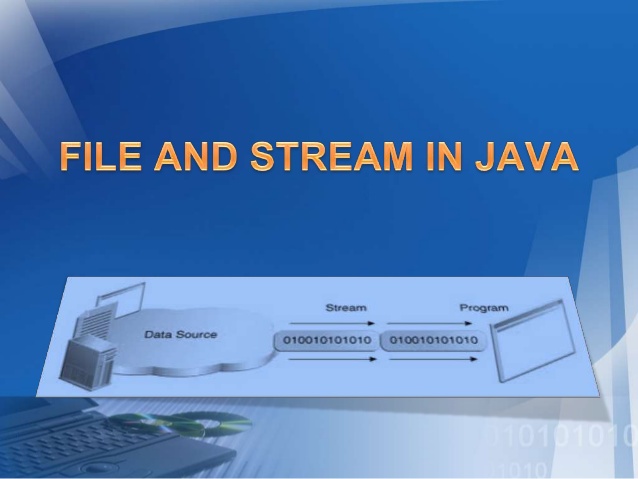
File Handling in Java


Hey Guys, today we will look in to file handling in Java.
File handling in Java is not very hard to understand, it's vary similar to file handling in other programming languages.

Well, let's read a file using Java first. To read a file in Java we can use 2 classes which are in-built.

  • FileReader Class - reads character by character
  • BufferedReader Class - reads word by word

When we are using FileReader Class to read a file,

First of all we have to create a object from the File class to open the file.
File myFile = new File("myTxt.txt");

Then we have to create a object from the FileReader class in order to read the content in the file.
FileReader reader = new FileReader(myFile);

There we have created all the relevant objects. Now let's read the content of the file to an character array.
char myArr[] = new char[200];
reader.read(myArr);


When we use BufferedReader Class to read a file,
First we have to create File and FileReader class objects.
File myFile = new File("myTxt.txt");
FileReader reader = new FileReader(myFile);
BufferedReader buff  = new BufferedReader(reader);

or else we can do the same process using a single line.
BufferedReader buff  = new BufferedReader(new FileReader(new File("myTxt.txt")));

Now we can read line by line using the readLine function().
String line=null;
while((line=buff.readLine())!=null){ //<--- this will check whether the file pointer has reached the end of the file
System.Out.Println(line);
}


Now let's see how to write to a file using Java.
Same as the reading there are 2 classes that we can use to write in to a file.

  • FileWriter - writes character by character to the file
  • BufferedWriter - writes word by word to the file
When we use FileWriter class to write in to a file,
First we have to create an object from the File class and then Should create an object from the File Writer class.
I will sue the short form here to create objects form a single line.
FileWriter writer = new FileWriter(new File("myTxt.txt");

Then we can use write() function to write in to the file.
writer.write("This text will be written in to the file");

We can also use the BufferedWriter class to write in to the files.
BufferedWriter bwriter  = new BufferedWriter(new FileWriter(new File("myTxt.txt")));


After writing to a file it is advisable to use the flush() function, because it will save the data in the memory which is still not written in to the file.
beriter.flush();


After reading or writing to a file(after opening a file) always remember to close the file after using it. close() function is used to close opened files in java. If not it will reserve system resources such as memory and will slow down the program. Maybe degrade the performance of the system.


Past Topics :- 
Like Us on Facebook :-


Comment Box is open for your Comments, Suggestions, ideas and complaints..!

Friday, June 26, 2015

File Handling in C++


Hey, what's up guys??

Today we will look in to File Handling in C++.

Before read or write to files we must know what are the classes or the header files that we must include to our program.
There are three classes:

  • ofstream = Class to write in files
  • ifstream = Class to read from files
  • fstream  = Class to both read and write from and to files
Including the header file to the program can be done as follows:
#include<fstream>

After including the header file we can use all the methods declared in that class. Since C++ is object oriented we must have to create a object from one of the above classes to use the functions.

At first we are using the class to read a file, so its better to create the object from the ofstream class.

ofstream MyObj; //Created a object named MyObj

After creating the object we must first use the open() function to open the file for reading.(or writing)
This function accepts two parameters. First on is the file name and second one is the mode that we want to open the file. Second parameter is optional.

MyObj.open("myTextFile.txt"); //opened a text file named myTextFile.txt in the readable form

After opening the file in the readable format lets write something to the file. First lets define a string variable named myContent. And let's read from the file.

String myContent;
MyObj>>myContent; //Reading the whole file content  and storing in a single string variable

Or else we can read the file line by line.

while(getline(MyObj,myContent)){
    cout<<myContent<<endl;  //this will print the content in the file line by line to the screen till the end of the line reaches
}


Well there, we read the content from a file. Let's try to write in to a file in C++.

To write to a file, first we must open the file in writable mode. We can do it by creating an object from the ofstream and opening the file using open() method.

ofstream myObj2; //created an object using ofstream class
myObj2.open("myTextFile.txt"); //opened a text file named myTextFile.txt in the writable mode


After opening the file in writable form we can simply pass values or variables and write values and content to the file.

myObj2<<"This line will be added to the text file"<<endl;

myObj2<<myContent<<endl;

To check whether the file is still open in the program we can use is_open() method. This method does not accept any arguments and will return a boolean value.

if(myObj2.is_open()){
    //body of the if condition
}


After we read and write and using the file we must close the file from our program. Otherwise it will hold some memory space and will make the program inefficient and affect the system resources badly. To close the filr from the program we can use close() function in C++.

myObj2.close();

These are the basic functions used in file handling in C++.


Past Topics:-
Like Us on Facebook :-


Comment box is open for your comments, ideas, suggestions and complaints!

Sunday, June 21, 2015

File Read and Write in PHP


Hello guys, how are you?

Today we will look in to the File Operations in PHP.

Whether to read or a write to a file, first of all we must open the file using PHP. The function that we use to open a file in PHP is fopen() function. This function accepts two parameters:-

  • file path
  • the mode that the file should be opened
$fp = fopen("input.txt", "r");

Here file is opened and assigned to a variable. This variable is usually called as file pointer. This will make our operations easy.


Modes that we can open a file :-
  • r - read only
  • w - write only(existing data will be re-written)
  • a - write only(new text will be added to the end of the existing text)
  • x - creates a new file for write only
  • r+ - opens a file for read and write
  • w+ - opens a file for read and write
  • a+ - opens a file for read and write
  • x+ - creates a new file for read and write

After opening the file in read  mode we can read the text which is existing in the file and assign it to a PHP variable. To do that we can use fread()  function. This function accepts two parameters.
  • file path
  • maximum bytes to read
$content = fread("input.txt",1024);

Or else we can use the file pointer variable as parameter. If we use that as a parameter it will read the file till it reach the end of the file.

$content = fread($fp);

If we want to read a single line of the file we can do it using fgets() function. This function also accepts two parameters. 
  • file path
  • file open mode
$content = fgets("input.txt","r");
$content = fread($fp);

In some context we maybe want to check whether the file pointer has reached the end of the file. So we can do it using feof() function. This function accepts one parameter which is the file pointer variable.

if(feof($fp)){
     echo("End of the file has reached!");
}

After opening a file for reading or writing purpose we have to close the file. Otherwise the file pointer will keep the file open and that will lead for errors and unexpected problems. To close a file we can use fclose() function. This function accepts one parameter which is also the file pointer variable.

fclose($fp);

These are the basic and most used file handling functions in PHP and there are plenty of more functions available to do various tasks.
Below link will show some more functions :-


Past Topics :-
Like us on Facebook:


Comment box is open for your comments, ideas and suggestions!